XFCE4 ricing guide - sovl edition
There still is a sovlful GNU/Linux GUI that's comfy to use.
This guide will show you how. While it's nothing particularly difficult, it will have some not-so-obvious tips that I wish someone told me about earlier.
The guide assumes certain pre-requisites:
Of course, this all can be done on other distros, but Debian is the one I'm using, so the guide is specifically for it. There is only one step that's somewhat distro specific, but more on that later. The final result can look like this:
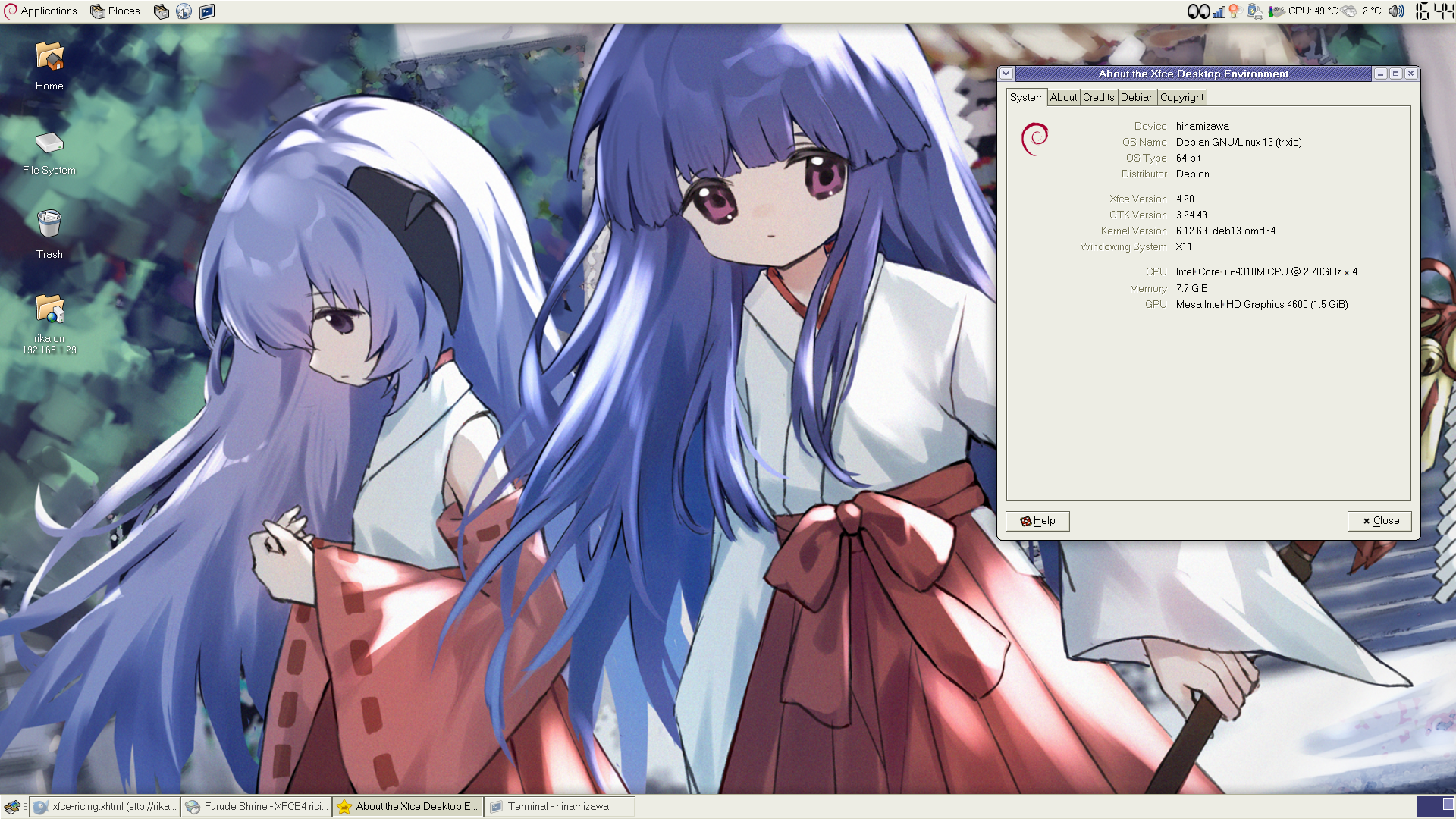 How my desktop looks like on my laptop (click for full size image)
First step: installing some themes
This is pretty much essential. Since we want our desktop to have SOVL, modern minimalist sloppa won't work. Most of the themes linked already have icons that go with them. I recommend the following:
- Bluecurve - my personal favourite. It's the default theme from old RedHat and Fedora. Looks somewhat retro but not so obviously 90's like Raleigh.
- Raleigh - even older than Bluecurve, this once was the default theme for RedHat and GTK2. This modern recreation also has a dark theme variant that the original theme did not have.
-
mate-themes -
themes and icons from the MATE desktop environment. One of the best ones is
Clearlooks (known as TraditionalOk and TraditionalGreen in MATE).
More on the modern side compared to Bluecurve or Raleigh, those
themes still look fresh and less obviously
retro
. Beware that TraditionalGreen doesn't have a matching XFWM4 theme. -
Ambiant - A fork of two
themes from old Ubuntu. The newest and arguably most modern ones, but not in
today's globohomo
minimalist
way. Give them a try if you prefer less retro-looking themes. No XFWM4 theme, but theMenta
theme from mate-themes matches it fairly well. - Human - another old Ubuntu theme, it can be best described as more glossy Clearlooks.
- DarkMint/DarkCold - definitely more on the skeumorphic side, it's a dark, glossy theme. The two variants are the same except for the dominating colour. XFWM4 theme not bundled, get it here. Doesn't have its own icons, I suggest either KDE's Oxygen or Oxylite.
Go ahead and install your preferred one or all of them. The instructions are
usually on their respective pages. If not, installing a GTK theme is as easy as
copying its directory to ~/.themes or ~/.icons in case
of an icon theme. It should look like this:
.themes/
└── your-gtk-theme-directory
.icons/
└── your-icon-theme-directory
Optional step: Panel and panel profiles
How you set up your panel is up to you, but I suggest installing
xfce4-panel-profiles to manage your panel layouts. It comes with some
existing presets, such as GNOME 2 that I personally like a lot. What I also like
to do is to change the clock appearance to LCD
and add a 2px border width
to the panel so that window buttons have a sort of ridge/padding around them. If
you want your panel to be, e.g. 30px tall, set the border width to 2px and row
size to 28px in panel preferences.
Step two: installing gtk3-classic
Now we shall move on to installing gtk3-classic. gtk3-classic is a set of patches for gtk3 that revert some of the nu-GNOME-centric design changes, consequently making gtk3 look more like gtk2 did. The changes aren't drastic, but they are noticeable, especially if you know where to look. See the project's homepage for comparisons. There are some downsides to all this, but it's got to do not with the project itself, but rather how it's implemented. Unfortunately, official Debian/Ubuntu builds have ended some time ago, so we'll have to rely on a 3rd party community repository, courtesy of khumba. While I've had no issues thus far, the result will be a bit of a FrankenDebian system, so I recommend you learn about the implications of it and make an informed decision whether you want to proceed. Packages related to gtk3 will be overwritten with 3rd party builds with the gtk3-classic patches applied.
If you're fine with all that, go ahead and get
his repository added to your Debian system. The instructions are on that
page, just follow them. Once that's done, install the libgtk-3-bin
package from that repository.
Any necessary dependencies will be installed from it as well.
As root, run the following:
# apt install -t kh-trixie-extras libgtk-3-bin
When it finishes, it would be best to simply restart the computer. Once you reboot, gtk3-classic should just work. The best way to test this is to right click in the gtk file picker in e.g. Firefox. The difference is quite clear, with gtk3-classic the right-click menu should look something like this:
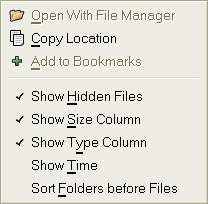
You might want to use apt's pinning or priority features to prevent gtk3-classic from being overwritten by updates from Debian's repositories.
Step three: finishing touches
You'll likely find that some icons, for example in the settings manager and the default application menu don't follow your custom icon theme. To fix that, we will change the default application menu to the Whisker menu. Unlike the default one, the Whisker menu allows changing launcher icons. Furthermore, the icons in the settings manager are actually derived from the launcher icons in the Whisker menu. Finally, I think the Whisker menu looks much better than the default one, so we're killing three birds with one stone.
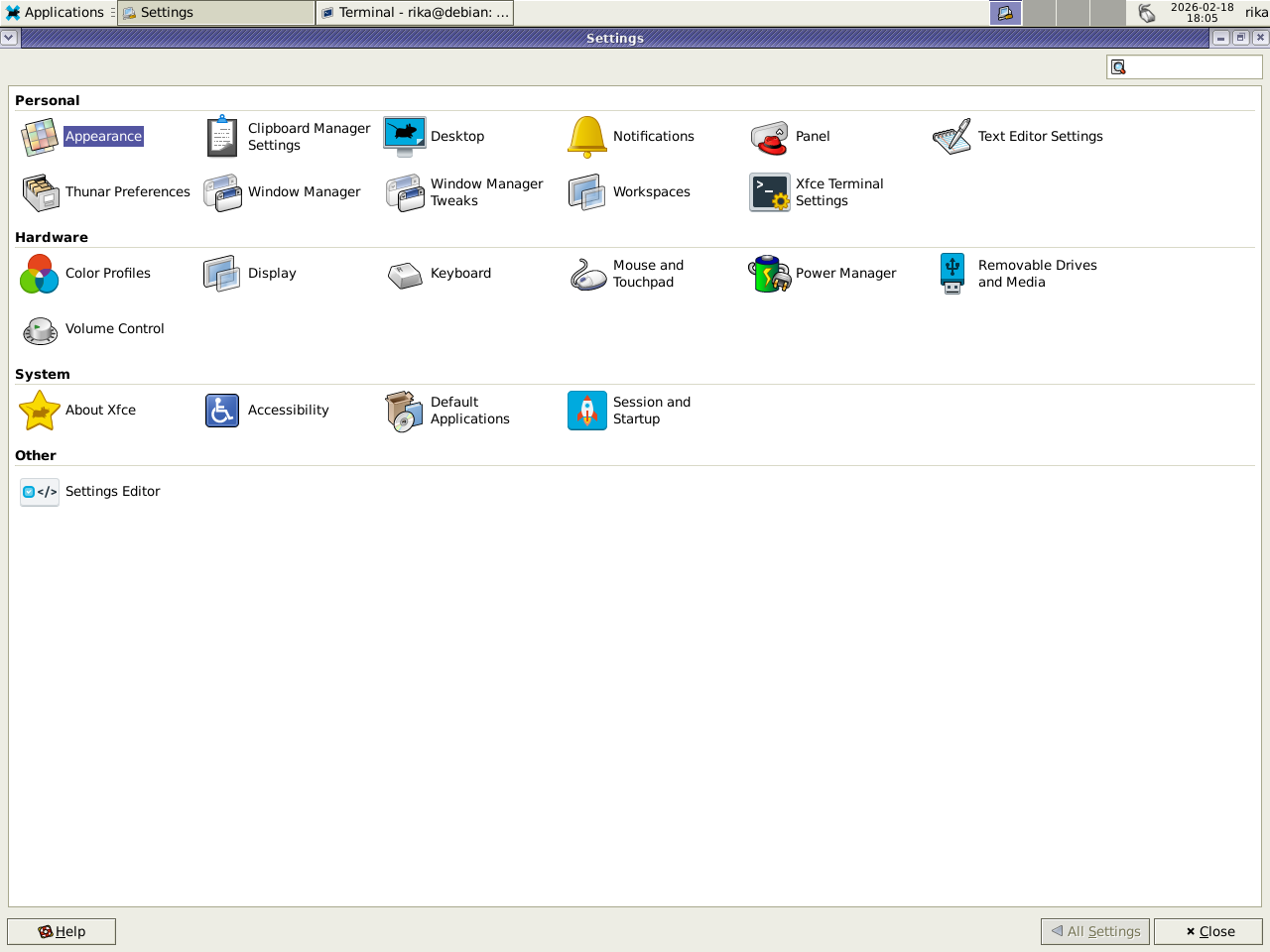 Settings manager, notice the non-matching icons in
 Desktopor
Removable Drives and Mediaentries.
Go ahead and swap the default application menu with the Whisker menu. You can do
that in Panel -> Items -> Add, where you should be able to find the Whisker menu.
If for some reason it's not there, see if you have the xfce4-whiskermenu-plugin
package installed.
Afterwards, remove the default application menu and open the Whisker menu you just
added. You can then right click on entries you want to change, select Edit
Application
and you'll be presented with an option to change the icon. You
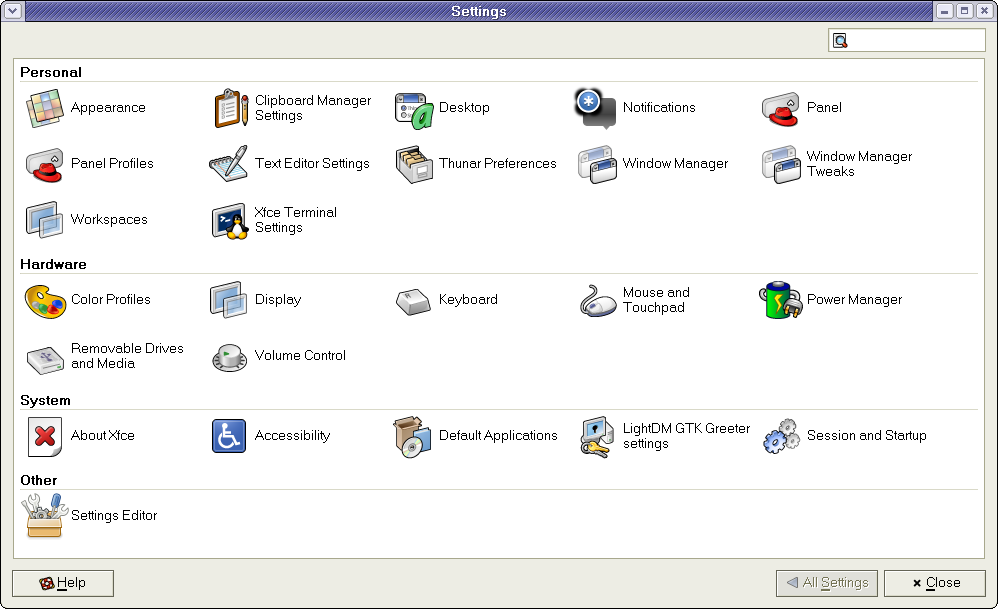
can use whatever you think fits best. In my case, the settings manager looks like
the image below. Launchers in the Whisker menu also use those icons.
Thunar tweaks
Thunar can use nu-GNOME's symbolic icons for the sidebar menu. This isn't the
default setting, at least on Debian.
If for some reason that's not the case, you can disable that in Edit ->
Preferences -> Side Pane -> uncheck
Use symbolic folder icons
Client-side decorations (CSD)
Client-side decorations are huge, ugly titlebars meant to be used with nu-GNOME
programs.
Much like with Thunar, CSD aren't enabled by default and gtk3-classic disables
them anyway. If for some reason this isn't the case, you can fix it in
Settings Editor -> xsettings -> uncheck .
DialogsUseHeader
Optional step: bitmap fonts
Although most of those themes look fine with vector fonts, bitmap fonts can enhance the aesthetic further, especially with older themes like Raleigh or Bluecurve. On Debian, bitmap fonts are disabled by default, but enabling them is quite easy. Go ahead and run the following in your terminal with root privileges:
# dpkg-reconfigure fontconfig-config
For most of the dialogs, just select whatever you think is fine or what the
dialog info suggests (I will say that you might want to set hinting to slight
since anything higher greatly deforms vector fonts). The important one is the
one that asks you whether to enable bitmap fonts or not, select Yes.
After you log out and log back in, bitmap fonts should display. Since somewhat recently, anything that uses Pango for fonts supports only the OTB format for bitmap fonts. PCF and BDF won't work. I'll leave it up to you which font to use, because there are too many to count. I personally suggest Cronyx Helvetica (I got it from Chicago95, since the one from repositories had trouble displaying) for Sans, and Terminus for Monospace. You can find even more bitmap fonts here.
You can install them with apt if available in the repositories,
or drop the files to /usr/share/fonts or ~/.local/share/fonts.
Run fc-cache -fv if installing manually. Unlike with themes, they
don't need to be in their own directories, although it can help with organisation.
Problems unsolved
Some icons still don't match the icon theme
This is something I've observed with some icon themes, such as the one from MATE or Raleigh. This can be easily seen in the log out screen, for example. Unlike with application launchers, there's no way to change these icons in an ordinary fashion. Until I find a way to fix this, the only solution seems to be using an icon theme that happens to cover these icons, such as Bluecurve.
Power manager tray icon uses nu-GNOME's symbolic icon
This time around, no icon theme I've tried ever changed the apperance of power manager's tray icon. It also seems not possible to easily change the icon to a different one. I recommend using the battery plugin instead. It too has an unchangeable icon, but it looks significantly better, and the applet itself has more functionality and customisation compared to the power manager.
Conclusion
As you can see, it's still very much possible to have a sovlful looking desktop without jumping through too many hoops. That said, the future isn't looking too bright, what with GTK4 and libadwaita on the horizon, quite a few GTK programs having already switched to it, now looking like straight out of nu-GNOME. But, looking how long GTK2 held out, I expect it'll still be a few more years till XFCE switches to GTK4, and even more until Debian updates to it.
Alternatives?
Although this guide doesn't cover them, if for whatever reason you don't like XFCE, you can try LXDE or MATE. For MATE in particular, gtk3-classic offers a minor visual update. LXDE is for the most part gtk2, with some programs being gtk3, like the terminal and PCManFM. The themes will work the same for the two.
To do:
- Firefox themes
- Investigating aforementioned unsolved problems